

1. Introduction
The goal of this challenge is to give an introduction to Volatility. Students will be using Volatility to identify a malicious process in a memory snapshot. Additionally, Velociraptor Artifacts will be used to get the same result.
- You suspect that the attacker has also launched a malicious process on WS1. You need to identify it.
- To analyze WS1, you will be taking a memory snapshot of the VM and analyze it with Volatility.
You will need to download the Volatility Windows Standalone Executable (x64) to Forensic.
To demonstrate Velociraptor’s capabilities, you will then find ways to get the same information using Velociraptor. - For information on how to use Volatility, refer to the Volatility Wiki, the Command Reference and the Volatility Cheatsheet (both available on the Wiki) are particularly useful.
- Helpful information on how to identify unusual processes can be found on the SANS Hunt Evil Poster
2. Create Memory Dump and analyse it with Volatility
To create a memory dump of a system we can use the Artifact Windows.Memory.Acquisition

To get a successfull dump we have to increase the time limit to 20min and the file size to 8GB

After a while we get the memory dump of WS1

For the analysis of the memory dump with volatility framework we need to know the operating system of WS1. We can do that by using the generic.client.info artifact of velociraptor or using volatility with parameter imageinfo

After identify the profile we can go ahead to search for processes inside the dump with the parameters psscan,pslist and pstree.
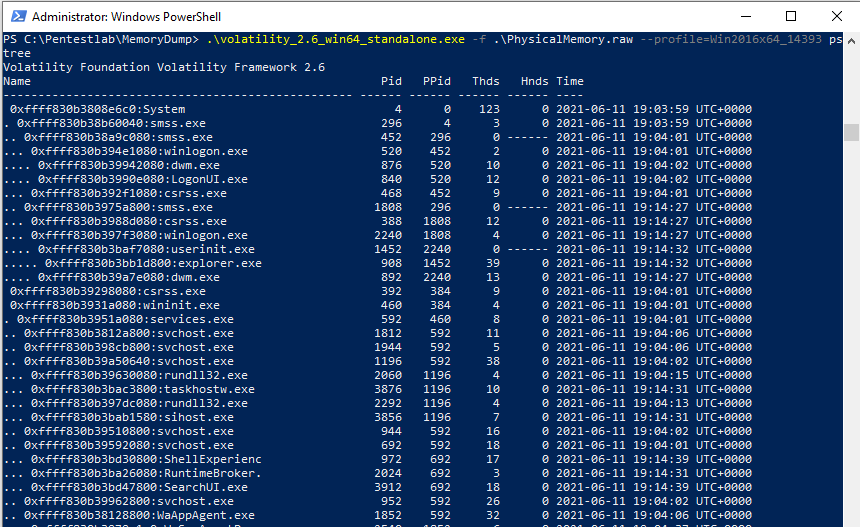
At this point it’s a good idea to have a look at the SANS-HUNT-Evil Poster.

3. Problems with the lab
From the hackinglab exercise we got a hint to have a look for the svchost.exe process. Maybe the attacker place a wrong svchost.exe process somewhere in the system? The SANS Poster says that correct image path is: %systemroot%\system32\svchost.exe and the parent process is most often services.exe.
That’s an indicator we can check with volatility, but I was confused because I couldn’t find any svchost.exe process without the parent process services.exe.
.\volatility_2.6_win64_standalone.exe -f .\PhysicalMemory.raw –profile=Win2016x64_1493 pstree | findstr „svchost services“

Creating a system dump is a timeconsuming process. I’ve tried it two more times and deployed the azure lab again.
In both cases it failed. Once velociraptor gave an error back and crashed while creating the dump. The second try succeed, but the maliscious process was still not seen in the dump!
Finally one student did provide his memory snapshot and I could download it from here:
https://mega.nz/folder/VKZWjBIT#X45vvEYyRzXCKaV5jeFOhg
Let’s again check for svchost childprocesses that belongs to services.exe
We have a suspiscious process identified!

Let’s check the file path:
.\volatility_2.6_win64_standalone.exe -f .\PhysicalMemory.raw –profile=Win2016x64_1493 cmdline -p 2352

An other option we have from here is to use the parameter malfind
.\volatility_2.6_win64_standalone.exe -f .\PhysicalMemory.raw –profile=Win2016x64_1493 malfind -p 2352
Fore some reasons this gave me with –profile=Win2016x64_1493 an error and no results back!
4. Velociraptor artifacts
I’ll go very quick trough the second part, because something with the lab did not work and I did allready spend a lot of time with this exercise!
Analogous to Volatility’s pslist and pstree, Velociraptor has the Artifacts Windows.System.Pslist and Windows.System.Pstree. Windows.System.Pslist additionally also shows you the CommandLine and Image path (labeled Exe) that required the use of cmdline in Volatility.
There also exists the Artifact Windows.Attack.ParentProcess, which would detect wrong parent processes (such as is the case with our svchost.exe).
But since the parent process no longer exists, and thus its name cannot be resolved, the malicious process is not listed.
Likewise, the Artifact Windows.System.SVCHost should detect it, but does not because the parent is no longer alive.
There is no equivalent Artifact to Volatility’s malfind!
Good to know:
There is another Artifact called Windows.Network.NetstatEnriched.You can filter the results by specifying, for example, svchost as the ProcessNameRegex parameter.
This gives you the remote IP and port in the fields Raddr.IP and Raddr.Port, respectively.
The screenshot is from another session and therefore we see different Pid’s here
